What is StreamGaGa?
StreamGaGa is software that enables users to download videos featured on online video streaming sites. It comes in versions for both Windows and Mac, supporting multiple languages such as Japanese, English, Spanish, French, and Italian. StreamGaGa offers a user-friendly interface that allows easy and speedy video downloads, enabling users to watch videos anytime, anywhere without an internet connection.Features of StreamGaGa
StreamGaGa stands out with several excellent features compared to other video downloaders:- High-Quality Video Downloads: StreamGaGa supports downloading videos in resolutions up to 2160p (4K) with selectable audio tracks (such as AAC 2.0 or 5.1). Users can also customize subtitles and audio languages without compromising video quality.
- Compatibility with Various Streaming Sites: StreamGaGa supports over 1000 websites, including popular streaming services like Netflix, U-NEXT, Hulu, and more. It promptly adapts to the latest changes on video streaming sites.
- Fast and Stable Downloads: Utilizing GPU acceleration technology, StreamGaGa achieves high-speed and stable downloads, increasing download speeds by up to 5 times. It can also handle simultaneous downloads and automatically resume downloads in case of errors or interruptions.
- Free Version Available: Users can access StreamGaGa's free version, allowing them to experience its features and usability before considering a purchase.
Differences Between StreamGaGa's Free and Paid Versions
StreamGaGa offers both free and paid versions with the following distinctions:- Free Version: Allows unlimited downloads of YouTube videos but limits the duration of saved videos to the first 5 minutes. For other video streaming services, users can download a maximum of 3 videos.
- Paid Version: Enables unlimited video downloads from over 1000 websites, providing access to more streaming sites and advanced features like GPU acceleration and batch downloads. As of October 2023, the pricing plans are as follows:
How to Use StreamGaGa
Using StreamGaGa is straightforward with the following steps:- Install StreamGaGa: Download and install StreamGaGa from the official website, then launch the application.
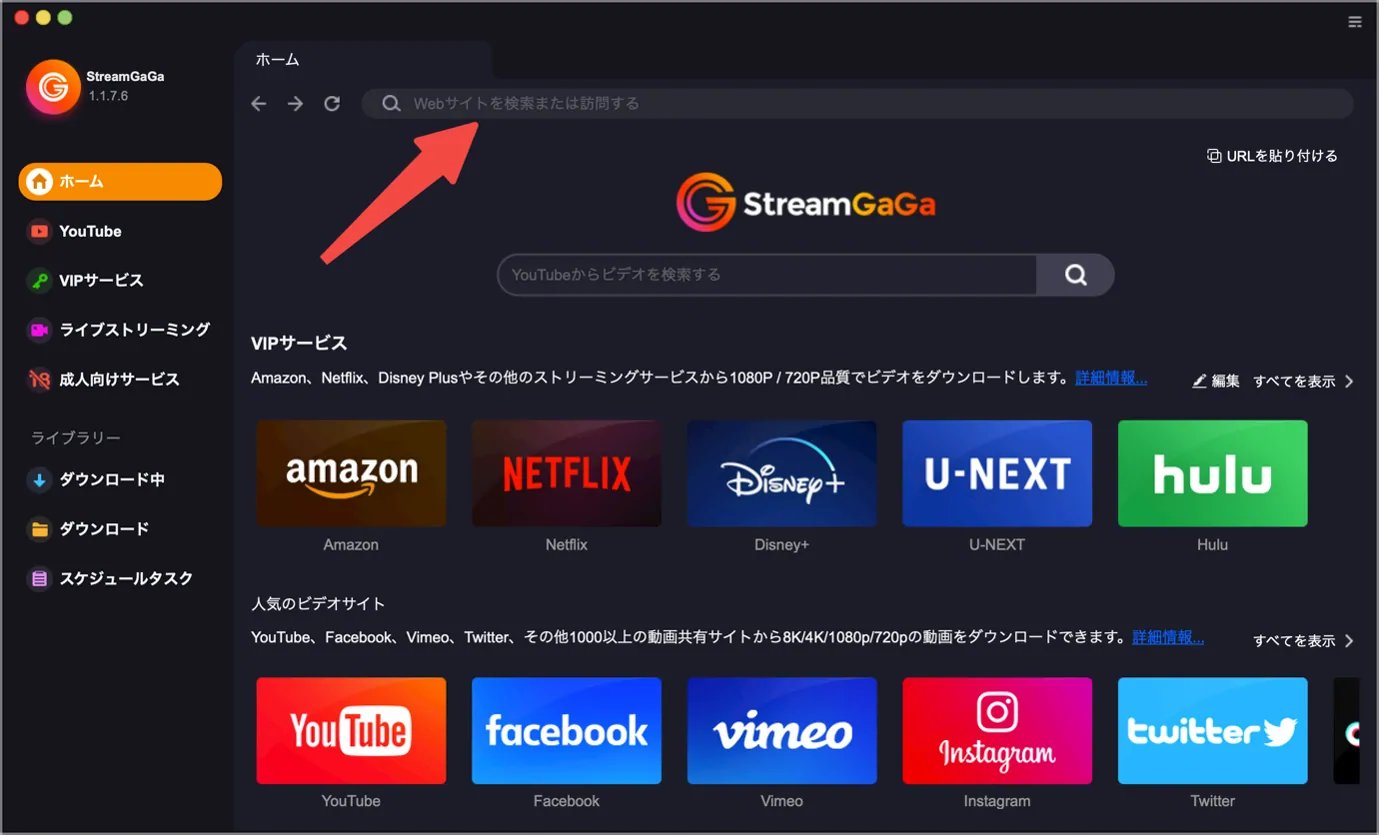
- Visit the Video Streaming Site: Use StreamGaGa's built-in browser to visit the desired video streaming site. If required, log in to your account.
- Select the Video to Download: Choose the video you want to download. When the video page opens, StreamGaGa will automatically identify available download formats and qualities.

- Configure Download Settings: Set download preferences such as format, quality, subtitles, and audio language. Once configured, click the "Download Now" button.
- Watch Downloaded Videos: Access downloaded videos from StreamGaGa's "Downloaded" tab. You can also open the folder where the videos are saved. Watch the downloaded videos offline using your preferred media player.